Orb Notifications
This guide explains how to configure and customize notifications in the Orb app so you can stay informed about your network's performance and any issues that arise.
Types of Notifications
Orb can send notifications to keep you informed about your network:
Offline/Online Status Notifications
Status alerts about your Orb sensors going offline or coming back online.
Advanced Events & Alerts
Available for all users, create rules and get alerted for changes in connectivity or performance including:
- Score changes: monitor for changes to Orb, Responsiveness, Reliability, and Speed Scores
- Location changes: monitor for changes to country, country code, state, city, or ISP name
- Network changes: monitor for changes to pubic IP address, Wi-Fi network, BSSID, connection type, local IP address, or MAC address
- Bandwidth changes: monitor for changes to download and upload speeds
Notification Settings
Accessing Notification Settings in the App
- Open the Orb app.
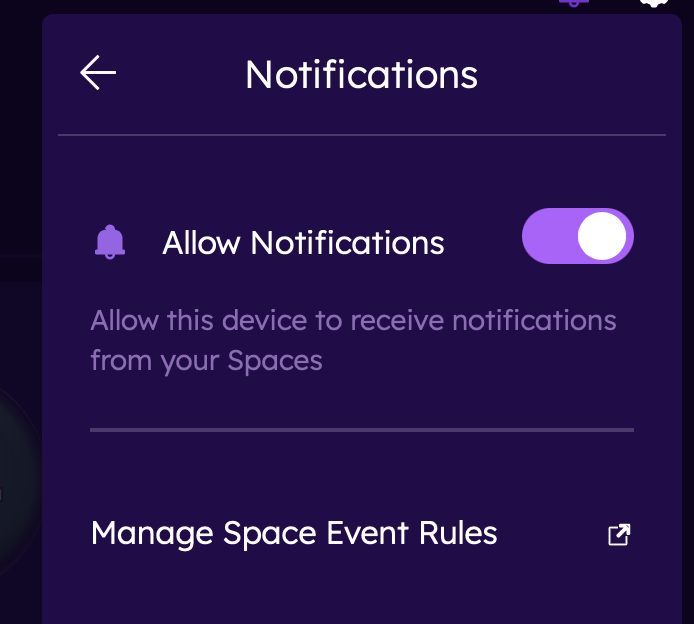
- Go to Settings > Notifications.
- Allow Notifications: Toggling this allows the device to receive notifications from your Orbs. For multi-user accounts or accounts with more than 25 Orbs, notifications are managed in Orb Cloud only.
Note: Receiving status notifications from mobile devices may be too noisy as these Orbs will go online and offline frequently (when the app is closed or backgrounded). Exceptions include using a spare phone as a dedicated sensor, using the "keep awake" or "run in background" modes.
Manage space event rules: launches Orb Cloud where you can create and manage rules and destinations.
Accessing Notification Settings from Orb Settings Menu
Open the Orb app.
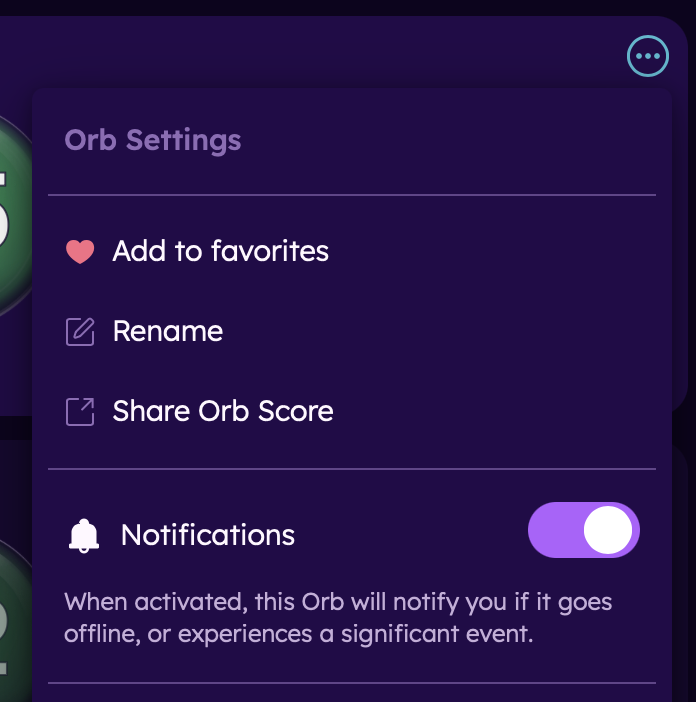
Go to the Orb settings menu (...).
Use the notification toggle to enable/disable notifications for that specific Orb.
Creating and Managing Alert Rules
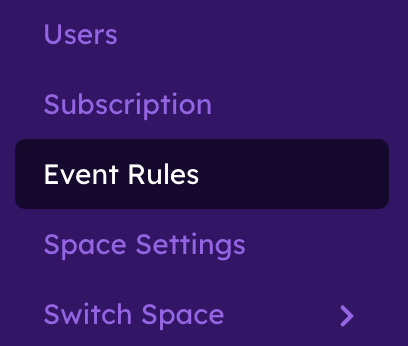
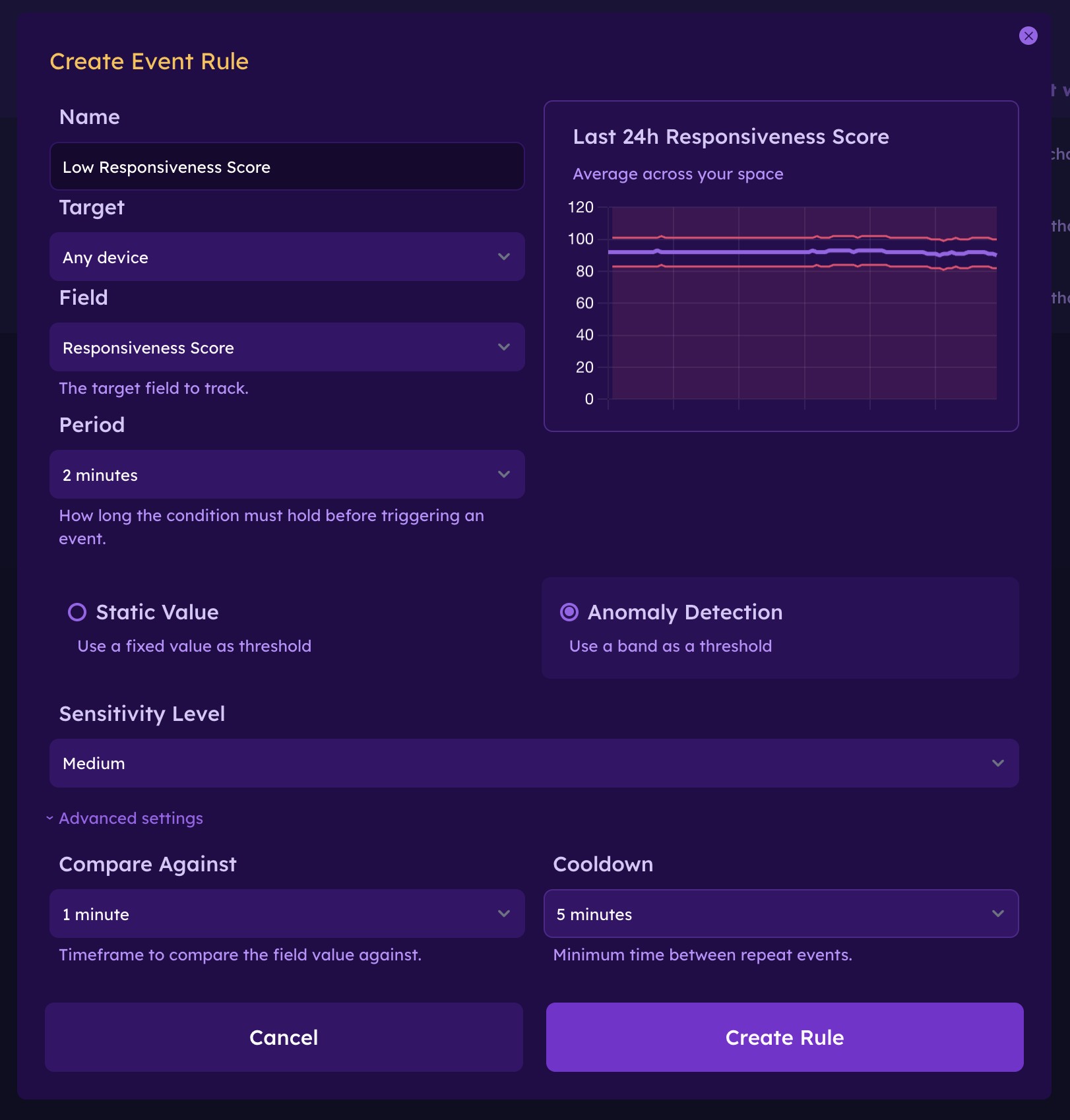
- In Orb Cloud, navigate to "Event Rules" in the menu.
- Click/tap on "Create Rule" in the top, left-hand corner
- Name the rule (tip: use a name that is descriptive)
- Select the Orbs or Group of Orbs to which the rule applies
- Choose the field that the rule will be based on.
- Select the "period" or time threshold that will drive the alert. Options include: instant, 1 min, 2 min, 5 min, 10 min, 15 min, 30 min, 1 hr, 2 hr, 6 hr, 12 hr, 24 hr. Note:
instantmight be very noisy. - Select a Static Value (such as a Score below 80 or Download Speed below 100 Mbps) or Anomaly Detection (Orb will select a band based on the field and performance of your network experience).
- Select your preferred Sensitivty Level (Low, Medium, High, Custom)
- Select "Create Rule"
Advanced Rule Settings
Under advanced settings, users can:
- Set the "Compare Against" field for determining the delta in current performance to previous performance.
- Set the cooldown to minimize repeat alerts.
- Select which destinations an alert should be sent to.
Creating and Managing Rule Alert Desinations
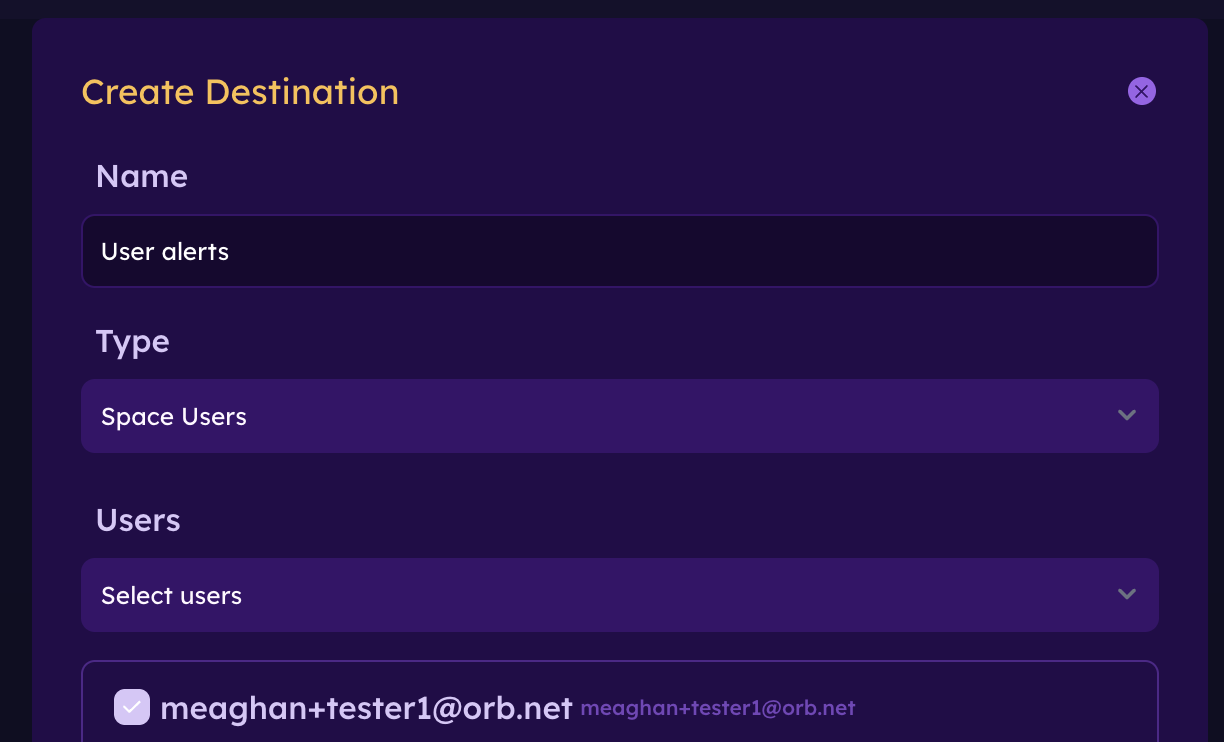
Navigate to the "Destinations" tab
Click/tap "Add Destination"
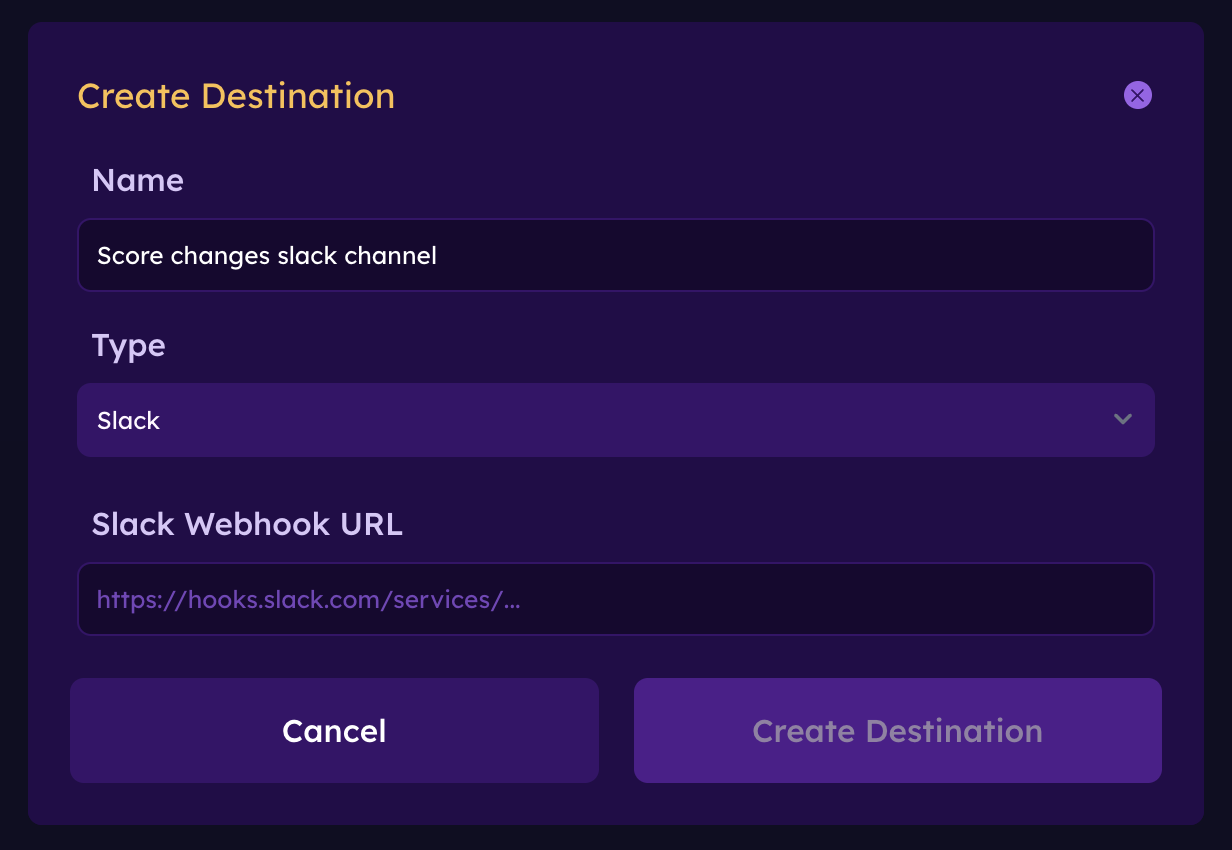
Name the destination
Select the type of destination
- Space users: choose all or select users in your Orb space to receive alerts
- Email: select a specific email address to send alerts to (example: orbalerts@company.com)
- Webhook: send your alerts to a tool, dashboard, website, or more
- Slack: Send your alerts to a Slack channel
- Microsoft Teams: send your alerts to a Teams channel
Enter the destination or select users to receive alerts
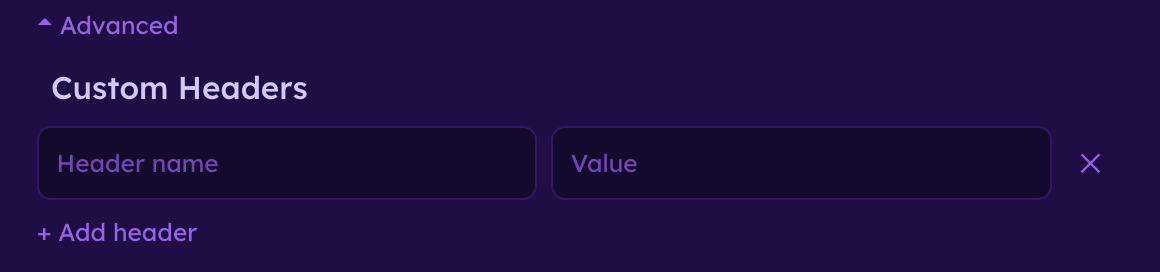
Advanced settings in Destinations
Format your webhook to include custom headers and values.
Troubleshooting
Not Receiving Notifications
If you're not receiving expected notifications:
- Check that notifications are enabled in the Orb app.
- Verify your device's system notification settings for Orb.
- Ensure your device has an active internet connection.
- Check that Do Not Disturb mode isn't active.
- Try restarting the app or your device.
Next Steps
Now that you've configured your notifications, learn more about: